
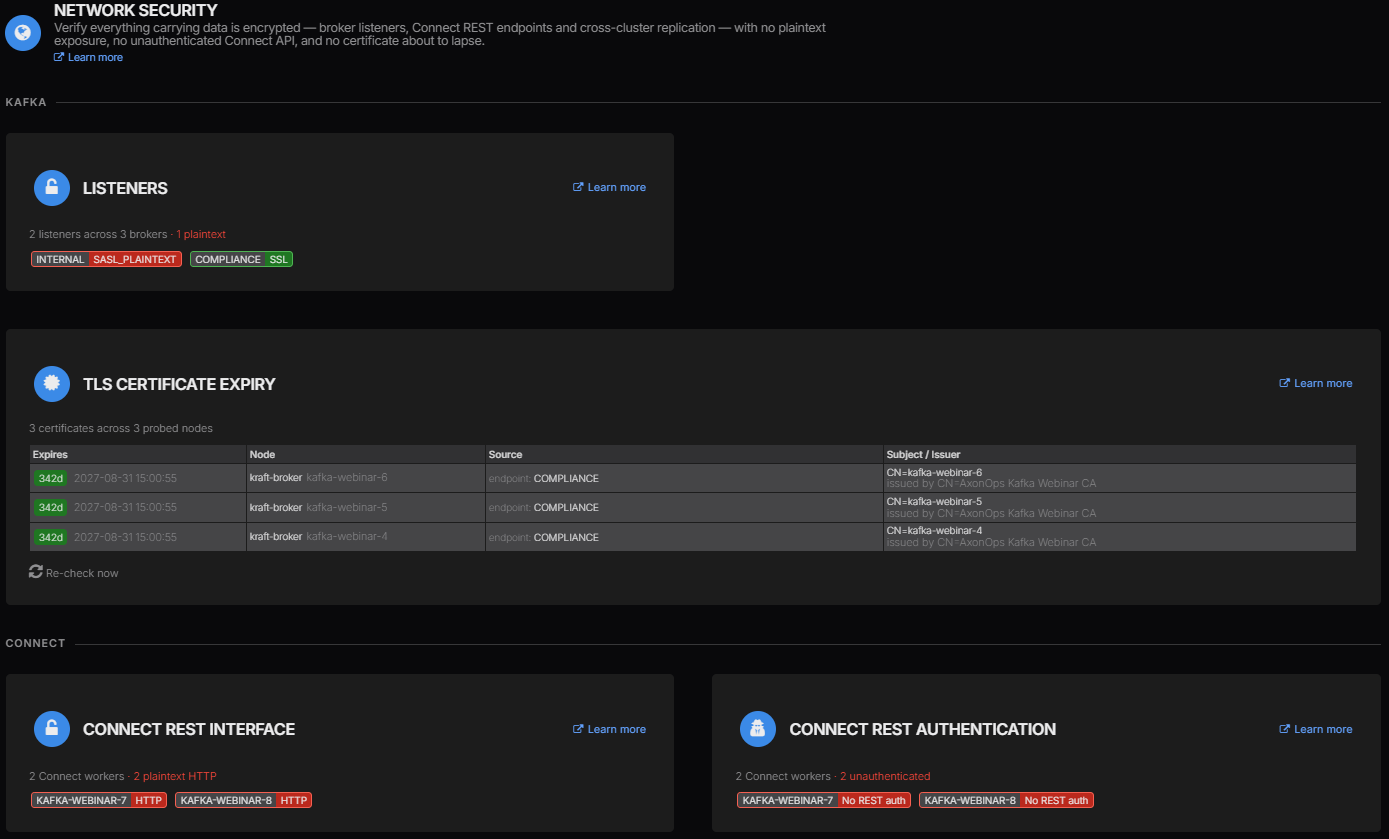
If you’re securing a Kafka cluster for production you’ll need to protect its network traffic and control the access given to each application. A shared cluster may serve several teams so an account that writes orders shouldn’t also be able to read payroll data or delete another team’s topics.
We’ll configure TLS to encrypt connections and SASL with SCRAM to authenticate clients before applying ACLs to restrict their operations. Using separate writer and reader accounts we’ll test both permitted and rejected requests so you can check the permissions you’ve configured and recognise when a failure comes from certificate trust or authentication instead.
We ran these examples in an isolated Apache Kafka 4.1.2 container with its bundled Java clients. Using the same versions will let you reproduce the tests before adapting them to your deployment. Check our Kafka release notes for version changes and upgrade requirements when choosing a release for production.
You can find the configuration references in our Kafka security documentation along with guidance for applying security to a cluster that’s already running.
TLS, SASL and Kafka ACLs
Before we start changing settings it helps to know which part of the connection each one controls. An incorrect password needs a different fix from a missing topic permission so we’ll change one thing at a time and compare the errors Kafka returns.
| Check | Configuration in this lab | Observed failure |
|---|---|---|
| Can the client trust the server and establish an encrypted connection? | TLS with a trusted certificate and hostname verification | SslAuthenticationException with an untrusted certificate |
| Can the client authenticate as the requested user? | SASL with SCRAM-SHA-512 | SaslAuthenticationException with an incorrect password |
| May that user perform this operation? | Kafka ACLs enforced by StandardAuthorizer | TopicAuthorizationException for a writer without topic access |
| May the reader use this consumer group? | A separate group ACL | GroupAuthorizationException without group access |
For our application connections TLS lets the client verify the broker’s certificate and encrypts the traffic between them. SCRAM checks the application’s username and password so neither the writer nor the reader needs a client certificate. The controller connection uses mutual TLS so the connecting node must present a trusted certificate too.
We’ll assign these protocols separately through Kafka’s listener configuration. Check every listener when doing this on your own cluster because enabling TLS for application connections leaves any listener still configured as PLAINTEXT unencrypted.
The Test Environment
We’ll use a single process acting as both broker and KRaft controller with one replica per topic. Both listeners bind to loopback inside a container with no external network or published ports. Running the clients in that same container through podman exec lets us test the connections without exposing Kafka to the host network.
| Component | Tested configuration |
|---|---|
| Server and Java clients | Apache Kafka 4.1.2 from docker.io/apache/kafka:4.1.2 |
| Application listener | 127.0.0.1:9092 using SASL_SSL and SCRAM-SHA-512 |
| Controller listener | 127.0.0.1:9093 using TLS with required client authentication |
| Topics | orders and payroll, each with one partition and one replica |
| Application identities | User:writer and User:reader |
| Consumer group | orders-service |
To run the examples yourself you’ll need Linux with rootless Podman plus Node.js and a JDK that includes keytool. The Kafka security lab download includes the test script and complete broker configuration with a README explaining how to use them. Extract the archive first so you can read through the files before starting Kafka.
tar -xf kafka-security-lab.tarThe script expects the Kafka 4.1.2 image to be available locally so pull it first if you haven’t already. Run these commands from the directory containing the extracted folder.
podman pull docker.io/apache/kafka:4.1.2
node kafka-security-lab/run.mjs /tmp/kafka-security-results
The script creates temporary certificates and credentials before starting its own Kafka container. After the tests it removes that container and the temporary files but leaves the commands and their output in /tmp/kafka-security-results/results.json for you to inspect. It won’t connect to an existing cluster or download an image itself.
We’ll walk through the commands it runs using the Kafka tools in /opt/kafka/bin and the generated configuration files in /lab. These paths belong to the test container so don’t paste the commands into an existing cluster. Every password beginning with lab-only is a disposable test value that must not be reused.
Configure TLS and SCRAM
Let’s start with the broker’s listeners and tell Kafka how to secure each connection. CLIENT and CONTROLLER are names we’ve chosen for the listeners and the protocol map assigns SASL_SSL to one and SSL to the other.
listeners=CLIENT://127.0.0.1:9092,CONTROLLER://127.0.0.1:9093
advertised.listeners=CLIENT://127.0.0.1:9092
listener.security.protocol.map=CLIENT:SASL_SSL,CONTROLLER:SSL
controller.listener.names=CONTROLLER
inter.broker.listener.name=CLIENT
sasl.enabled.mechanisms=SCRAM-SHA-512
sasl.mechanism.inter.broker.protocol=SCRAM-SHA-512
listener.name.controller.ssl.client.auth=required
listener.name.client.ssl.client.auth=none
We’ll put the broker’s private key and certificate in a keystore and the public certificate we want clients to trust in a truststore. The generated certificate is self-signed with subject alternative names for both localhost and 127.0.0.1 so the clients can verify the hostname as well as the certificate.
ssl.keystore.type=PKCS12
ssl.keystore.location=/lab/broker.p12
ssl.keystore.password=lab-only-store-password
ssl.key.password=lab-only-store-password
ssl.truststore.type=PKCS12
ssl.truststore.location=/lab/trust.p12
ssl.truststore.password=lab-only-store-password
ssl.endpoint.identification.algorithm=https
On a production cluster we’d use certificates issued through the organisation’s CA process for the hostnames that clients actually connect to. Remember that the bootstrap connection is where clients discover the other broker addresses from advertised.listeners. Those advertised hostnames need to match their brokers’ certificates too as shown in our TLS hostname verification guidance.
The broker also needs credentials for its own outgoing SASL connections so we’ll give it a separate account named broker. Its login settings belong to the CLIENT listener as shown in the generated configuration below.
listener.name.client.scram-sha-512.sasl.jaas.config=org.apache.kafka.common.security.scram.ScramLoginModule required username="broker" password="lab-only-broker-password";The script creates the initial SCRAM credentials while formatting new temporary storage for this container. It supplies an --add-scram argument with 8,192 iterations for each of the four accounts we’ll use. Do not format existing Kafka storage to add an application account.
For an existing cluster you can manage users with kafka-configs.sh as described in our SCRAM credential management guide. Kafka stores those credentials in the KRaft metadata log so remember to protect that storage and its backups as well as the client configuration files.
Enable Kafka Authorisation
Now we can tell Kafka to check permissions through StandardAuthorizer and deny access when a resource has no matching ACL. We’ll also disable automatic topic creation and have the administrator create orders and payroll before either application account connects.
authorizer.class.name=org.apache.kafka.metadata.authorizer.StandardAuthorizer
allow.everyone.if.no.acl.found=false
auto.create.topics.enable=false
super.users=User:admin;User:broker;User:CN=localhost
The admin account handles setup while the other two superuser entries let the node use its SCRAM account and certificate identity. Keep writer and reader out of super.users so their requests are checked against the ACLs. This combined process shares a certificate identity for the test but a production deployment needs separate node identities.
When brokers and controllers run separately you’ll need the authorizer configured on both because some administrative requests are forwarded to the active controller. KRaft principal forwarding carries the client’s identity with the request so the controller can check the forwarding node and then the permissions of the client that made it.
Check the Client Connection
With the broker configured we can give the writer its username and password together with the truststore location. We’ll leave idempotence enabled and use acks=all throughout the producer tests so those settings remain the same as we change permissions.
security.protocol=SASL_SSL
sasl.mechanism=SCRAM-SHA-512
sasl.jaas.config=org.apache.kafka.common.security.scram.ScramLoginModule required username="writer" password="lab-only-writer-password";
ssl.truststore.type=PKCS12
ssl.truststore.location=/lab/trust.p12
ssl.truststore.password=lab-only-store-password
ssl.endpoint.identification.algorithm=https
acks=all
enable.idempotence=true
The script creates similar files for admin and reader using their own credentials and sets short request and delivery timeouts so failed requests don’t spend minutes retrying.
First we’ll use the administrator account to describe orders and confirm that the connection works. Then we’ll repeat the request with an unrelated certificate in the truststore to see what happens when the client can’t trust the broker.
/opt/kafka/bin/kafka-topics.sh \
  --bootstrap-server 127.0.0.1:9092 \
  --command-config /lab/wrong-trust.properties \
  --describe --topic orders
The client fails during the TLS handshake because it can’t build a trusted certificate path for the broker.
org.apache.kafka.common.errors.SslAuthenticationException: SSL handshake failed
Caused by: javax.net.ssl.SSLHandshakeException: (certificate_unknown) PKIX path building failed: sun.security.provider.certpath.SunCertPathBuilderException: unable to find valid certification path to requested target
Now let’s restore the correct truststore but use an incorrect SCRAM password by switching to /lab/wrong-password.properties. The client gets past certificate validation and fails authentication instead so adding a topic ACL wouldn’t help with either of these errors.
org.apache.kafka.common.errors.SaslAuthenticationException: Authentication failed during authentication due to invalid credentials with SASL mechanism SCRAM-SHA-512Give the Writer Access to One Topic
With trust and authentication working we can try writing to orders using the writer’s valid credentials. We haven’t given this account any permissions yet so Kafka rejects the request even though the password is correct.
org.apache.kafka.common.errors.TopicAuthorizationException: Not authorized to access topics: [orders]Let’s give User:writer permission to write to orders and try again. We’ll run the following command as the administrator and use a literal resource name so the permission applies to that exact topic.
/opt/kafka/bin/kafka-acls.sh \
  --bootstrap-server 127.0.0.1:9092 \
  --command-config /lab/admin.properties \
  --add \
  --allow-principal User:writer \
  --allow-host 127.0.0.1 \
  --operation Write \
  --topic orders \
  --resource-pattern-type literal
The allowed host is loopback because our clients run inside the container so you’ll need the client source addresses seen by your brokers when adapting this to a deployment. Keep the network controls in place too because the ACL only controls Kafka operations. We’ve allowed Write on orders without granting Create or Delete and the literal name doesn’t match orders-private.
You might expect to need a separate Describe entry so the producer can fetch topic metadata. Kafka’s authorizer implementation already treats an allowed Write as permission to Describe the same resource so this ACL covers both operations.
We can now try sending order-1001 to orders with the writer’s client configuration.
printf 'order-1001\n' | /opt/kafka/bin/kafka-console-producer.sh \
  --bootstrap-server 127.0.0.1:9092 \
  --producer.config /lab/writer.properties \
  --topic orders
This time the producer completes without an authorisation error and we’ll read back order-1001 when we configure the consumer. Before moving on let’s keep the same credentials and change the destination to payroll to check that the writer can’t publish there too.
org.apache.kafka.common.errors.TopicAuthorizationException: Not authorized to access topics: [payroll]Kafka rejects the write to payroll and also returns TopicAuthorizationException when we try to delete orders. That’s what we wanted from this account because it should be able to append order records without access to another application’s topic or permission to delete its own.
Notice that producer idempotence still works even though we haven’t granted cluster-wide IdempotentWrite. In Kafka 4.1.2 the InitProducerId handler accepts topic write authorisation for this non-transactional producer. If your application uses transactions you’ll also need to check permissions for its transactional ID because our example doesn’t exercise those requests.
Give the Reader Topic and Group Access
Let’s switch to the reader account and give it Read permission on orders. We’ll leave the consumer group permission out for the first attempt so we can see why access to the topic alone isn’t enough.
/opt/kafka/bin/kafka-acls.sh \
  --bootstrap-server 127.0.0.1:9092 \
  --command-config /lab/admin.properties \
  --add \
  --allow-principal User:reader \
  --allow-host 127.0.0.1 \
  --operation Read \
  --topic orders \
  --resource-pattern-type literal
We’ll use orders-service as the group ID and disable auto-commit so we can read the same record again after changing permissions. Otherwise a committed offset could move the next read past order-1001 and leave us wondering why nothing came back.
/opt/kafka/bin/kafka-console-consumer.sh \
  --bootstrap-server 127.0.0.1:9092 \
  --consumer.config /lab/reader.properties \
  --consumer-property enable.auto.commit=false \
  --topic orders \
  --group orders-service \
  --from-beginning \
  --max-messages 1 \
  --timeout-ms 10000
The reader has permission to read the topic but Kafka stops this attempt because orders-service needs its own ACL.
org.apache.kafka.common.errors.GroupAuthorizationException: Not authorized to access group: orders-service
Processed a total of 0 messages
We can keep the topic ACL as it is and add Read for the exact group name. This lets the application use orders-service without giving it access to every other consumer group.
/opt/kafka/bin/kafka-acls.sh \
  --bootstrap-server 127.0.0.1:9092 \
  --command-config /lab/admin.properties \
  --add \
  --allow-principal User:reader \
  --allow-host 127.0.0.1 \
  --operation Read \
  --group orders-service \
  --resource-pattern-type literal
Let’s run the same consumer command again now that both permissions are in place.
order-1001
Processed a total of 1 messages
There’s the record we wrote earlier with the consumer using orders-service as intended. Changing only the group ID to payroll-service brings back GroupAuthorizationException because the ACL is tied to the group name as well as the reader’s identity.
Trying the producer command with the reader’s credentials gives us a different error even though we’re still using orders. It fails with ClusterAuthorizationException during producer-ID initialisation because the reader has neither topic write access nor cluster IdempotentWrite. Granting a cluster permission to make that error disappear would give a read-only account permissions it shouldn’t have.
Test Denial and Revocation
We’ve now seen the reader consume a record and fail when it tries a different group. Next we’ll keep its working permissions in place and add an explicit deny for reading orders to see which rule Kafka follows.
The following command adds the deny without removing either of the allow entries we just created.
/opt/kafka/bin/kafka-acls.sh \
  --bootstrap-server 127.0.0.1:9092 \
  --command-config /lab/admin.properties \
  --add \
  --deny-principal User:reader \
  --deny-host 127.0.0.1 \
  --operation Read \
  --topic orders \
  --resource-pattern-type literal
The next read fails with TopicAuthorizationException because StandardAuthorizer gives a matching deny precedence over an allow. Removing just that deny lets the reader consume again using its existing topic and group permissions. The script removes the entry with the same principal and resource filters by replacing --add with --remove --force in this disposable test.
Finally we’ll remove the group’s allow entry and run the consumer again without changing topic access. We’re back to GroupAuthorizationException because the reader has lost permission to use orders-service. Each attempt starts a fresh client process so testing how quickly existing connections pick up ACL changes across several brokers would need a separate check.
| Change | Result captured by the next test client |
|---|---|
Add topic Read but no group ACL | Group access denied |
Add Read on orders-service | order-1001 received |
Add explicit topic Read deny | Topic access denied |
| Remove only the explicit deny | order-1001 received again |
Remove the group Read allow | Group access denied again |
Before finishing we’ll read orders as the administrator and check what’s actually stored there. We get only order-1001 because none of our rejected writes appended their test records to that topic. Checking the data gives us more confidence than relying on the console command’s exit status alone.
Production Checks
Before using these settings in production we’ll need to repeat the permission tests with the application’s own client version. The single container let us try each failure without affecting an existing cluster but there are several things to check when adapting its configuration to your deployment.
| Area | Check before deployment |
|---|---|
| Kafka version | Use a maintained release with the applicable security fixes and rerun permission tests with the actual client versions |
| Certificates | Issue separate node certificates with the advertised hostnames in their SANs and rehearse renewal and truststore rotation |
| Listener access | Restrict application and controller networks and secure inter-broker connections as well as client connections |
| Node identities | Separate application credentials from broker and controller identities and review who can use administrative accounts |
| Secrets | Keep client passwords and private keys out of source control and shell history and protect metadata storage and backups |
| ACLs | Test each required topic, group and transactional ID with the intended principal and check rejected operations too |
| Availability | Use an appropriate controller quorum and replicated topics rather than this single combined process |
| Supporting services | Review Kafka Connect and Schema Registry authentication and HTTP endpoints separately |
For the production topology our KRaft architecture guide covers controller quorums and choosing between combined and dedicated controllers. Our single-replica topic still has only one copy of the data when we set acks=all so these tests tell us nothing about surviving a broker failure. You’ll need to test replication and failover on the intended topology as well.
If you’re securing an existing cluster you’ll also need to plan how its clients move to the new listeners without losing access. Our guide to enabling security on a running cluster takes you through that migration so you can rehearse it before changing production listeners. Check your provider’s setup if you’re using a managed Kafka service because its authentication and authorisation may differ from the native SCRAM and ACL configuration we’ve used here.
Operating a Secured Kafka Cluster
Keep a copy of the failed requests alongside the permissions your application needs so you have something concrete to compare when a connection stops working. If a consumer reports GroupAuthorizationException we know to check its group and principal before changing certificates or passwords. The errors we’ve worked through help us make that choice without granting broader permissions just to get the application running again.
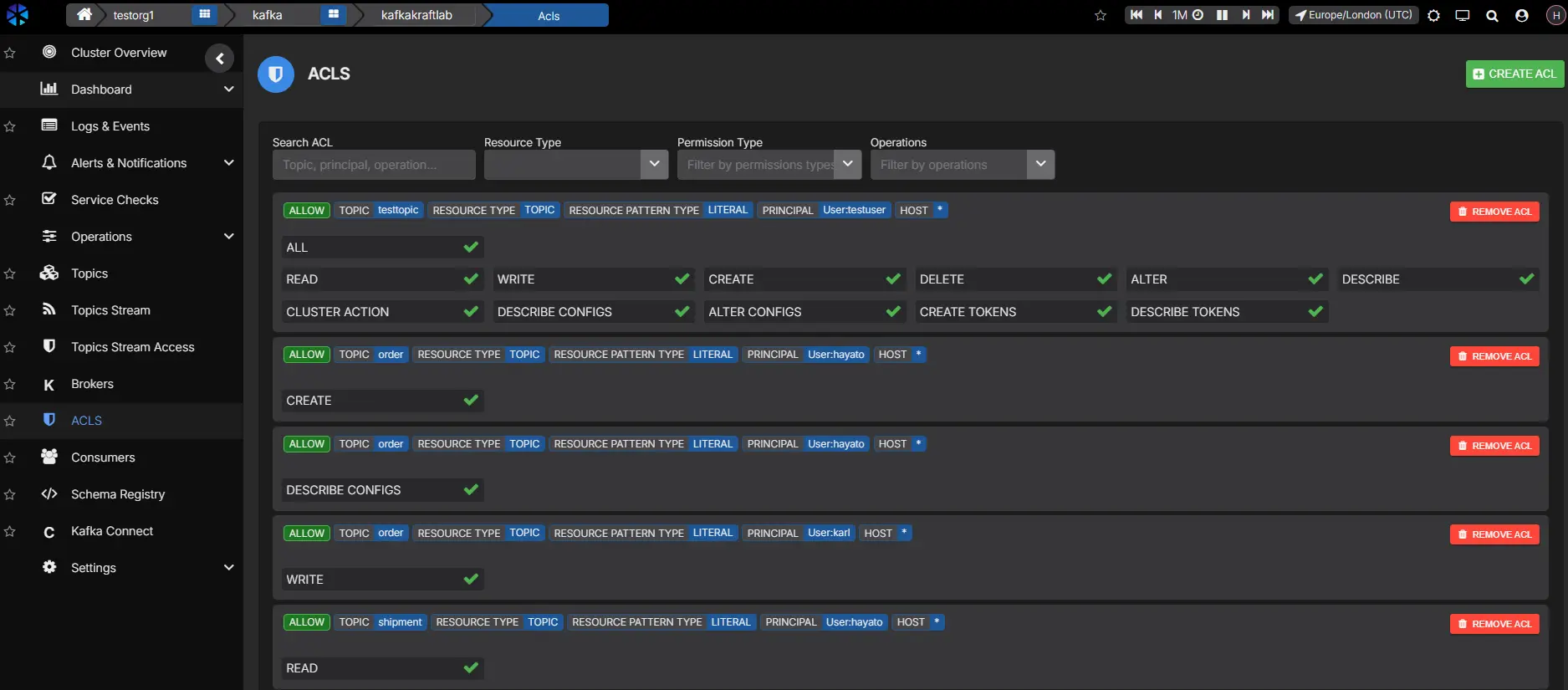
Once the application can connect and use its topics we can look at Kafka monitoring metrics alongside the client logs to investigate slow requests or replication problems. You can also inspect ACLs through AxonOps as shown below and explore the management and monitoring tools in our AxonOps Kafka overview.
For access reviews and audit preparation our Kafka enterprise compliance guide explains how AxonOps highlights gaps in these controls and how to retain evidence of the checks and any corrective work.
Our Kafka support team can help plan security changes to a running cluster and work through its deployment and patching requirements. The examples in this article exercise Kafka’s own security checks without an AxonOps installation so testing an AxonOps deployment would be a separate step.